
Working in HTTPS mode is optional.
By default, Quilliup runs in HTTP mode on port 8080.
It can be switched to HTTPS mode, typically using port 8443 or 443, depending on customer requirements.
⚠️ Important: Switching to HTTPS requires a valid SSL certificate for the Quilliup website.
1. Preparation
Before making the changes make sure the tomcat service is down
- In Windows - stop Tomcat service from Task Manager (End Task).
- Shut down the service in services (Stop service)
- Delete all logs from:
..\quilliup\logs Delete the Catalina folder from:
..\quilliup\work
2. Files to Edit
Three files must be updated to enable HTTPS:
security-config.xml
...\webapps\ROOT\WEB-INF\classes\spring\security-config.xml(a) Locate the entry:
<intercept-url pattern=... requires-channel="http"/>
2. config.properties..\webapps\ROOT\WEB-INF\classes\config.properties
(a) Update the server.port=8443

3. server.xml
..\conf\server.xml
(a) Search for: <Connector port="8080" ... />

(b) Comment it:
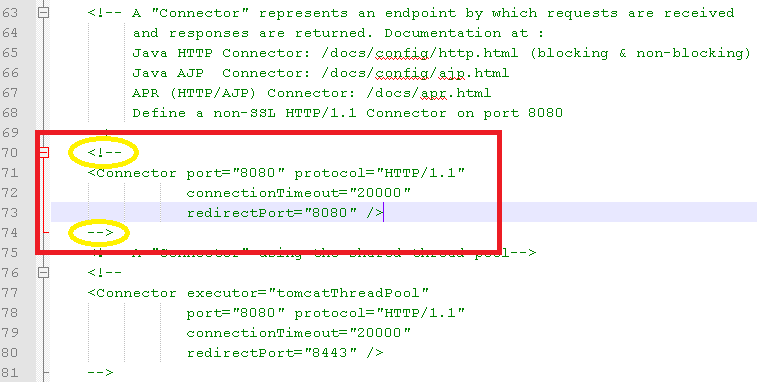
(c) Search for <Connector SSLEnabled="true" ... /> entry and un-comment it.
(d) Change the port number from 8080 to 8443:

(e) Please note that you have in your document the all parameters mentioned here:
3. Certificate Details
Supported formats: PFX or JKS.
Ensure that:
- keystoreFile points to the correct certificate path, including extension.
Example:C:\Program Files\quilliup\certificate\your.jksC:\Program Files\quilliup\certificate\your.pfx - keystorePass matches the certificate password.
- keyType= It's important to note that this feature is optional and can be added at the circle level as required by specific customers.
After making all the changes, Start the Tomcat from services (for Windows).
Or (for Linux) by running the next command from the terminal: quiiliup\bin\startup.sh
4. Troubleshooting
If you receive the following after all the above steps:
1. Try using the server's name instead of "localhost"
2. Press the advance button and continue to quilliup's home page
Comments
0 comments
Please sign in to leave a comment.