
Working in HTTPS mode is optional.
quilliup is installed by default in HTTP mode on port 8080. It can be switched to HTTPS mode using port 8443, 443 or other available port.
Before switching to HTTPS mode create a valid certificate for quilliup.
Before proceeding with the changes, ensure that the Apache Tomcat/quilliup is stopped:
Shut it down by killing the running java process using the following commands in the terminal:
ps -ef | grep tomcat<number of the tomcat process> will be returned.
Run the following command inside the bin folder:
sudo kill -9 <number of the tomcat process>
To switch to HTTPS mode, 3 files should be edited:
- "../webapps/ROOT/WEB-INF/classes/spring/security-config.xml" file. Search for the entry <intercept-url pattern .../> and change the requires-channel property value from HTTP to HTTPS:
2. "../webapps/ROOT/WEB-INF/classes/config.properties" file. Change server.port property's value to 8443 and server.protocol property's value to HTTPS:
3. "../conf/server.xml" file.
Search for:

Comment it:
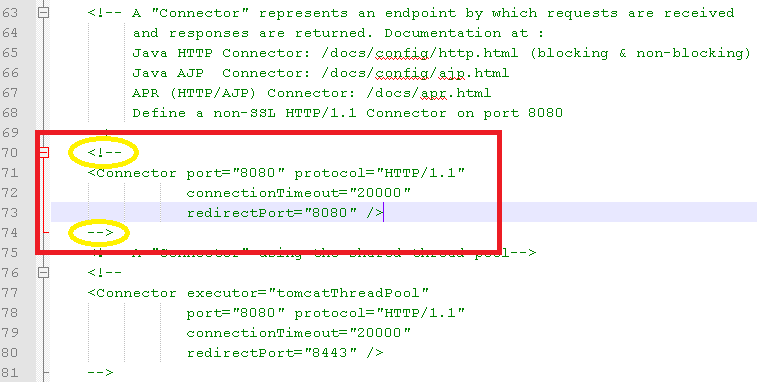
Search for the <Connector SSLEnabled="true" ... /> entry and un-comment it. Change the port number from 8080 to 8443:

Please ensure that all the parameters are included:
<Connector port="8443" protocol="org.apache.coyote.http11.Http11NioProtocol" maxThreads="150" SSLEnabled="true" scheme="https" secure="true" clientAuth="false" sslProtocol="TLS" keystoreFile="/path/to/your.jks" keystorePass="your_keystore_password" keyType=""/>keyType - is optional and can be added if required by specific customers.
keystoreFile - a valid path to the certificate.
keystorePass - a valid password to the certificate.
Supported certificate types: PFX / JKS
Please ensure that the "keystoreFile" parameter points to the correct location of the certificate, for example:
keystorePass="/opt/quilliup/certificate/your.jks"
or
keystorePass="/opt/quilliup/certificate/your.pfx"
After making all the changes, start quilliup by running the following command from the terminal: quiiliup\bin\startup.sh
Try to access quilliup UI from browser.
Note: if you receive the following alert after all the above steps:
1. Try to use the server's name or ip address instead of "localhost".
2. Press "Proceed to localhost (unsafe)" and continue to quilliup's home page.
Comments
0 comments
Please sign in to leave a comment.