
To configure and access API Data Sets, follow these steps:
1. Connect to API Data Source:
- Before creating a Data Set, ensure you have a Data Source configured for the API connection.
- For detailed instructions on setting up a Data Source for an API, refer to the API Data Source Guide.
Creating a New Data Set:
- Name (Required): A unique identifier for the Data Set. You can let the system auto-generate it.
- Data Source Name: Select the preconfigured data source.
- Description: Optional field to describe the Data Set's purpose or content.
- Tags: Add tags for easier categorization and identification.
2. Configure the API Data Set:
Once the Data Source is set, create a new API Data Set by providing the following details:
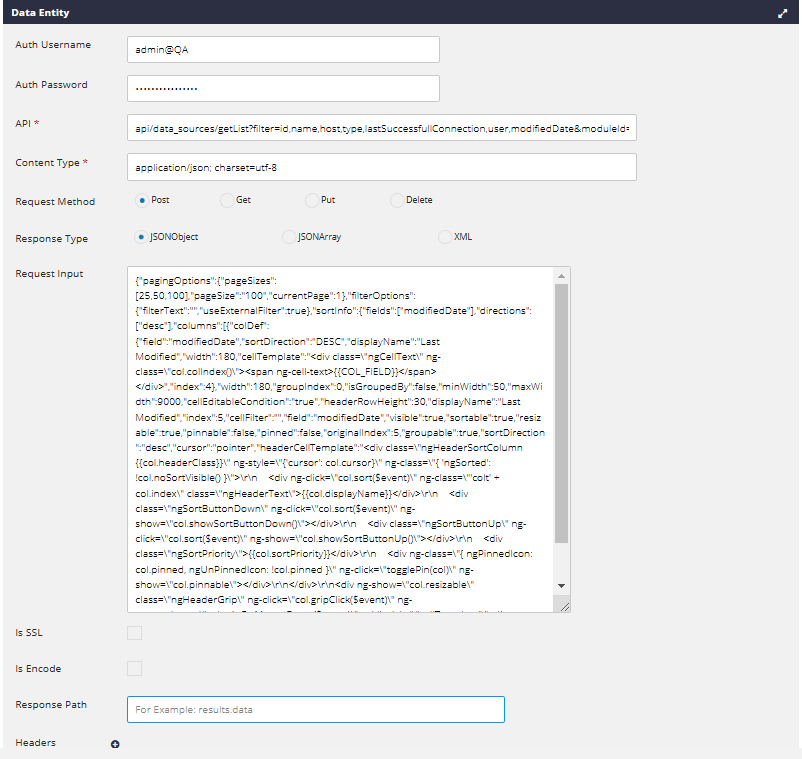
Data Entity:
Data Entity Fields:
- Auth Username: Username for API authentication.
- Auth Password: Password for API authentication.
- API Path: Specify the endpoint to be added to the base URL defined in the Data Source.
-
Content Type: Default is
'application/json; charset=utf-8', but it can be changed. -
Request Method: Select one of the following:
POST,GET,PUT,DELETE. -
Response Type: Choose one of the following:
JSON Object,JSON Array,XML. - Request Input: Insert the entire request body (if required by the chosen Request Method).
- Is SSL: Check this box if the API uses SSL for connection.
- Is Encode: Check this box if encoding is required.
- Response Path: The "Response Path" is a configuration field that allows you to specify the exact location in the JSON response where the relevant data resides. This is particularly useful when the response contains multiple layers or nested objects.
Response Path Example:
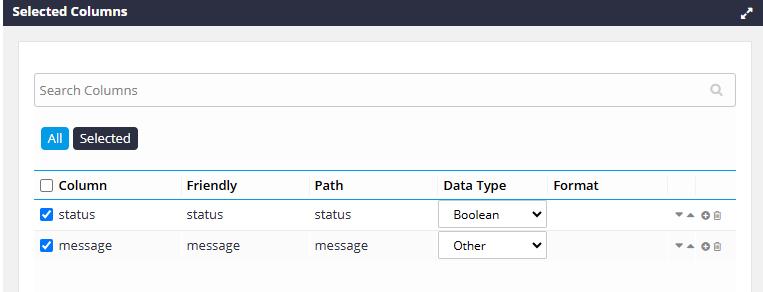
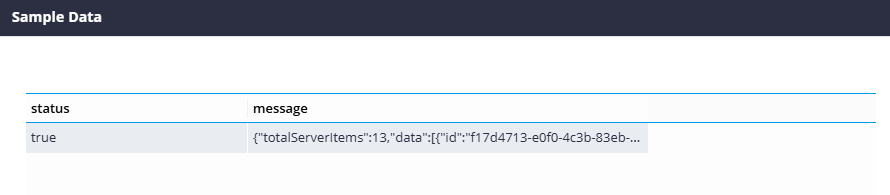
Without Response Path:
The JSON response is processed as-is, with all data retained, including nested structures and unrelated fields.
In this case, without setting the Response Path, the system processes the entire response, including both the message object and the status key.
JSON response:
{
"totalServerItems": 13,
"data": [
{
"id": "f17d4713-e0f0-4c3b-83eb-e7ff69272d4b",
"name": "localhost:8080",
"host": "localhost",
"type": "REST",
"modifiedDate": "Jan 29, 2025, 12:19:24 PM",
"dsType": "REST"
}
]
}........
With Response Path ('message.data'): When you set the Response Path to message.data, the system isolates only the data of the message key. The processed response becomes:
If you set the Response Path to 'message', the response would be structured as:
"result": [
{
"id": "f17d4713-e0f0-4c3b-83eb-e7ff69272d4b",
"name": "localhost:8080",
"host": "localhost",
"type": "REST",
"modifiedDate": "Jan 29, 2025, 12:19:24 PM",
"dsType": "REST",
"lastSuccessfullConnection": "NULL"
},
{
"id": "108a1380-3ce3-48b1-926b-14b629cab47e",
"name": "API_ADI_CHECK",
"host": "dog.ceo",
"type": "REST",
"modifiedDate": "Jan 29, 2025, 12:13:15 PM",
"dsType": "REST",
"lastSuccessfullConnection": "NULL"
}.......
in sample data:
Headers - by clicking '+' sign you can add required headers.
Selected Columns area:
Mark checkbox from the left side to select the column(s) that will be displayed in the Data Set.
All button - show all the columns.
Selected button - show only selected columns.
Friendly - friendly name can be defined for the column(s).
Path - the path for a specific value returned from API response in JSON format can be defined. For example: if response from an API call is returned in next Json format:
{
"message": { "totalServerItems": 59 }
}
so, in order to receive value of "totalServerItems" key, in the "Path" column insert value "message.totalServerItems" :
Click "Sample Data" button and you'll see that you get value "59" (as needed):
Data Type – suitable Data Type can be selected from the list: Number / Decimal / Date / Time / Datetime.
Format - possible Format option(s) will be shown regarding chosen in the column "Data Type" value.
Add Group By:
User can choose Aggregate Functions and ‘Group by’ for each column.
Filter:
A filter(s) can be added and “Add Condition” stands for “where” operation applied to query.
AND/OR operators:
The AND and OR operators are used to filter records based on more than one condition:
- The AND operator displays a record if all the conditions separated by AND are TRUE.
- The OR operator displays a record if any of the conditions separated by OR is TRUE.
Comments
0 comments
Please sign in to leave a comment.