
Abbreviations, used in manual:
RDAE - RDA Editor
FW - Form Wizard
RDA - Reference Data Admin
RDAD - RDA Designer
The "Edit Settings" button in Step 3 allows the RDAD to control multiple options:
When clicking, the form named "Advanced Grid Settings", containing multiple sections, will open:
Presentation Query section:
Is exclusively designated for data presentation purposes. While it permits the utilization of SQL queries that may incorporate additional tables (Join, Union, etc.), any attempt to modify columns not presented in the table, defined in the FW's Step 1, will not be allowed.
To update or alter the "Presentation Query" value, activate the "Customized Query" switcher and implement the required changes. Verify the validity of the "Presentation Query" value by using the "Validate" button.
General Options section:
Available Search options in the General Options section:
Enable Search - allows to search values in the FW.
Advanced Search Only - when on, the only available search option in RDAD Step 4\ RDAE, will be presented by "Advanced Search" and "Clear Advanced Search" buttons. After performing a search, "Show Results For" label will appear for chosen search value(s), for example:
Enable SQL Search - is available only for tables of DB type Oracle! Allows to search values by using SQL query:
When "Enable SQL Search" is on => in RDAD Step 4 \ RDAE only the query text box will be available:
If FW has any predefined/default filters, all of them will be disabled after applying "SQL Search" option.
Exact match - when on => is applied to Global and to Advanced search. Equality will be used for value searches at the SQL query level (supported starting from quilliup version 2.7.1).
Available Add options in the General Options section:
Enable Add - allows to add new rows to the FW.
Add Button On The Top - the "Add" button will appear at the top of the FW.
Add Button On The Bottom - the "Add" button will appear at the bottom of the FW.
Available Control new rows options in the General Options section:
Enable control new rows - allows users with the appropriate permissions to manage the visibility of the "Add" button, preventing the addition of new rows through the UI.
To enable this feature, ensure the "Allow Control New Rows" option is set to true in the "Project Permissions" for the relevant Role.
For more information on configuring project permissions, refer to the RDA Project Permissions manual.
Enable Copy - allows copying rows in the FW.
Enable Edit - allows to edit rows in the FW:
Condition Edit - allows defining Edit condition in JavaScript format.
For example: country = 'Israel' => only those rows that have the value 'Israel' in the column country, could be edited.
Enable Delete - allows deleting rows in the FW:
Condition Delete - allows defining Delete condition in JavaScript format.
For example: country = 'Israel' => only those rows that have the value 'Israel' in the column country, could be deleted.
Enable Bulk Operations - allows to edit/delete rows using bulk:
Enable Bulk Edit - allows users to update multiple rows simultaneously within the FW.
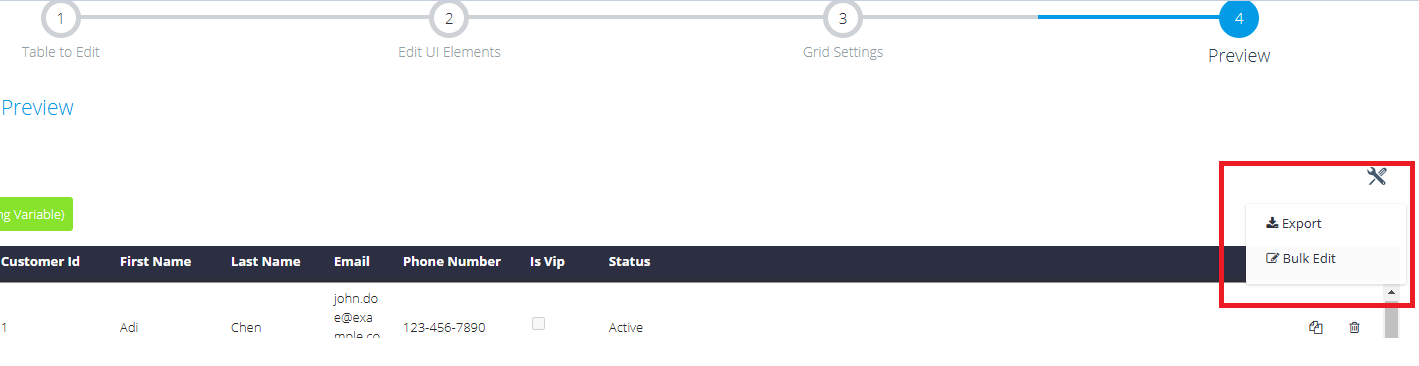
When enabled, users can select multiple rows in RDAD Step 4 \ RDAE, choose the "Bulk Edit" option at the top of the grid, and define new values for specific fields.
These changes will then be applied to all selected rows simultaneously.
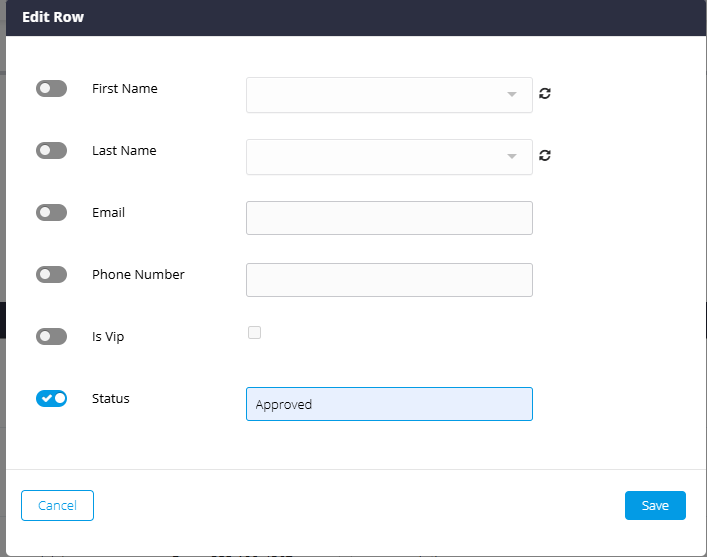
For example, if a user wants to change the "Status" column's value to "Approved" for 50 rows, he can select those rows, choose "Bulk Edit", and set the new value. All selected rows will be updated in a single action:
1. Enable the Bulk Edit switch in Step 3.

2. Click the Bulk Edit button in the top-right corner of the screen.
3. Apply the desired changes to all selected records.
When on => in Step 4 RDAD \ RDAE, select the relevant rows and choose "Bulk Upload" from the top of the form:
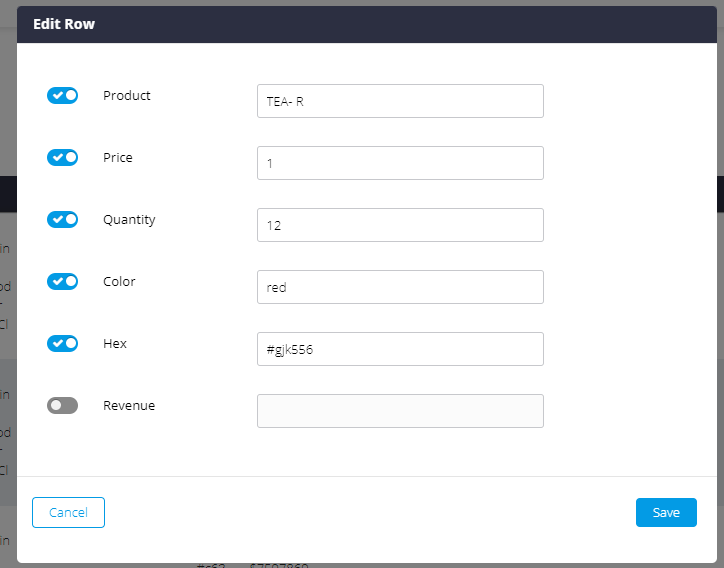
Define the new values:
Enable Bulk Delete - allows deleting rows in the FW by bulk.
When selecting multiple rows and choosing the Bulk Delete option, the following message will appear:
Will be presented with a scrolling tool if needed. The default value is 15.
Clean Whitespaces - remove white spaces inside the FW to allow the component (table) to be presented wider on the screen. In case when true/on, there is no pagination but infinite scrolling.
The value set in the "Row Height" field, represent the height of each individual row. By default, the height is set to 20, which ensures clean whitespace. However, it's important to note that the height of each row is determined by the content within it. Therefore, the rows may have varying heights based on their content.
In cases where you have cells with substantial content and desire uniform row heights throughout the table, there is an option available. By enabling both the "Clean Whitespaces" switcher and the "Force Height" switcher, you can establish a specific height for all the rows, effectively overriding the height determined by content.
Please note that if you choose to utilize clean whitespace, we kindly request to define the "Customize Page Size" setting to a value of 1000.
Disable Autocomplete - preventing the browser from suggesting autocomplete values.
The switcher is located in the column settings section when a specific column is selected.
Advanced Functionalities:
Scriptable buttons section - please refer related detailed manual: Form Wizard, Step 3, Scriptable Buttons
Forms Wizard, Step 3, Filter Form by Drop Down
Comments
0 comments
Please sign in to leave a comment.